Wear A Fedora
2025-07-28, Mon
Recently I decided to give Fedora Linux a try, and out of my surprise, everything just works smoothly from installation to service running up. Whenever something goes wrong, there is alwaysg documentation1, how-to guides2, manuals and logs for reference. This post intends to write down some topics that I've been playing with in the last several days. Note that the version I've installed is Fedora Workstation with GNOME Desktop, so the out-of-box experience could be different with other Editions or Spins.
1. File Sharing in Fedora
1.1. WebDAV
To enable file sharing through WebDAV, go to Settings -> Sharing and
Enable File Sharing. An unintuitive part here is the "File Sharing
Address" provided is dav://fedora, which isn't quite helpful.
The real address is http://local_ip:port, where local_ip could
be found through ifconfig, and port could be found through
lsof | grep http.
1.2. Samba
In order to create a Samba share, follow detailed steps of the how-to guide3, which could be summarized as:
- Install package
samba - Enable and start the
smbservice - Allow
Sambaacccess from other computers - Add a
Sambauser, or create a dedicated group forSambashare - Create a dedicated directory to be shared by
Samba - Update SELinux context for the shared directory
- Modify
/etc/samba/smb.conffor sharing configurations - Restart the
smbservice for the config changes to take effect
A lot of steps are involved, but the concepts should be straightforward.
2. Remote Desktop Control
Remote Desktop access could be enabled in Fedora through Settings. As for RDP client, there is GNOME Connections4.
3. Virtualization and Containerization
GNOME Boxes5 provides GUI for virtualization6, while Podman7 provides an alternative choice to Docker.
3.1. Virtualization
For Boxes, an interesting behavior is that if the default "Firmware"
option is chosen, i.e. BIOS, then the boxed OS will have IP address
from 192.168.0.0/16, with broadcast address mapped to virbr0 in
local machine. In this case, we can ssh into the boxed OS through
its IP address. On the other hand, If the "Firmware" is set to UEFI,
then the boxed OS will have IP address from 10.0.0.0/8.8
Configuration for Boxes could be found in ~/.config/libvirt/qemu/
for VM, and in ~/.config/libvirt/storage/ for storage settings. If
GNOME Boxes doesn't suit your need, consider virt-manager, which is
another GUI application that offers more customizations, albeit
requiring admin privilege. Fedora also provides the option to manage
virtual machines through the cockpit web
console9.
For using CLI to manage virtual machines, there is detailed online
documentation on this topic10. Aside from
packages qemu-kvm and libvirt, we might also need:
virt-installto create virtual machinesvirshto manage virtual machines, andvirt-viewerto connect and display the graphical console for a virtual machine
An interesting usage of virt-viewer is to connect to a VM after it has already
been started in Boxes, e.g. virt-viewer --attach "Rocky Linux".
4. PostgreSQL
For PostgreSQL, follow the quick doc11 for detailed steps, which could be summarized as:
- Install packages
postgresql-serverandpostgresql-contrib - Enable and start the
postgresqlservice - Initialize database with
postgresql-setup - Create password for the
postgresuser - (Optional) Allow PostgreSQL port access
- (Optional) Update SELinux contex
- Update
/var/lib/pgsql/data/postgresql.confto allow network connections - Update
/var/lib/pgsql/data/pg_hba.confto allow access to database server
Note that when using TRAMP mode in Emacs, sometimes it could change
user/group of the modifed file from postgres to current wheel user
– in which case, the service restart command will fall. Whenever this
happens, check the PostgreSQL log to see whether it's caused by
incorrect file permission.
5. Games
5.1. VCMI
VCMI12 is the GPL licensed re-implementation of HOMM 3, yet it
is only available in software center through flatpak by default. In
order to install the RMP package, add the RMP Fusion13
repository first14, then install
vcmi15.
sudo dnf install https://download1.rpmfusion.org/free/fedora/rpmfusion-free-release-$(rpm -E %fedora).noarch.rpm
sudo dnf update
sudo dnf install vcmi
After VCMI is installed, put game data into $HOME/.local/share/vcmi
and have fun.
5.2. Windows Game Launcher
In order to play Windows games on Linux, we typically need Wine16, along with a games launcher, e.g Bottles, Heroic, Lutris, etc.
- Bottles17: Wine prefix manager that could provide a clean Wine environment for different aplications
- Heroic Games Launcher18: A modern game launcher with user-friendly interface. For now Flatpak package is available but not RPM
- Lutris19: All-in-one tool that handles games from Steam, Epic, GOG, itch.io, Humble Bundle, and emulators like MAME, Dolphine, RetroArch, ScummVM, etc.
- PlayOnLinux20: An older tool that manages Wine prefixes, not in active development anymore
- Others21: Faugus Launcher, UMU Launcher, etc.
Take Bottles as an example, follow these steps to play HoMM 5:
- Install
Wine:sudo dnf install wine - Install
Bottles:sudo dnf install bottles - Download HoMM 5 installation files from GOG.com, i.e. the
setup-*.binfile along withsetup-*.exefile - Open
Bottles, create a new bottle with Environment of Gaming. Wait for the initialization process to complete, which might take a while - Open the bottle, run the executable downloaded earlier, e.g.
setup-*.exe, follow the installation wizard to complete the process - Back to Bottles, where the game should be enlisted in the Programs section. Add it to library for easy access, or run the prgram to play.
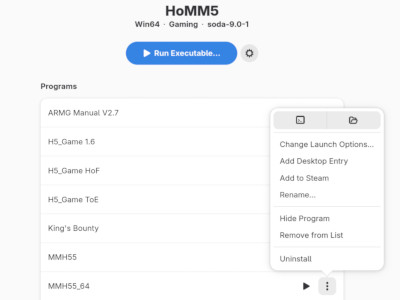
Figure 1: Extra Launch Options
6. Disks and File Systems
To get a new hard disk (or any other storage device) into current system, follow these steps22:
- (Optional) Review curren block devices, partition info, mount status, and file system usage
- Partition the disk
- Make a filesystem on partitions
- Mount a filesystem
- (Optional) Edit config file for auto mount
To review current block devices and file systems info, use following commands
- lsblk
- list block devices
- blkid
- view UUIDs of block devices
- sudo parted -l
- list disk partitions
- mount
- list filesystems mounted with no argument is provided
- df -h
- view filesystem space usage
To partition the disk, use one of the following tools:
- fdisk
- manipulate disk partition table, where the change is made only after w is pressed
- parted
- partition manipulation program provided by GNU, where change is made when each command is made
To make a filesystem, use mke2fs(8), or the dedicated mkfs.XXX
commands like mkfs.ext4, mkfs.btrfs, etc., or the deprecated mkfs.
To mount a filesystem, use the mount command.
When everything is settled, edit /etc/fstab to make the mount persistent.
See fstab(5) for details.
6.1. the util-linux utilities collection
Note that lsblk, blkid and fdisk all belongs to this utility package called util-linux23
6.2. the Btrfs (B-tree file system)
As for Btrfs24, this filesystem introduces subvolumes to replace the
old partitions, which is why we see one device being mounted on
multiple dirctories, e.g. /dev/vda3 being mounted on both / and
/home, with totally different content. The reason is different subvolumes
are being mounted. Use following commands to see them:
mount | grep btrfs
less /etc/fstab | grep btrfs
sudo btrfs subvolume list /
7. Misc. Configs
7.1. Passwords and Keys
Among all the GNOME applications pre-installed, Passwords and Keys
is missing and requires manual installation, which is a bit confusing,
since Chromium will complain if the user password has been changed
through passwd without going throug the GNOME settings. And when this
error happens, install Passwords and Keys and cleanse Log In data
with old password.
7.2. Network: Static IP
In order to enable static IP of current machine, go to Network config
and conifigure IPv4 manually by setting both IP address, Subnet mask
(which is typically 255.255.255.0), and Gateway
(e.g. 192.168.1.1). Also, consider to go to router config and bind
the IP with machine MAC address.
7.3. What's in /bin
Current Fedora has /sbin, /bin and /usr/sbin/ all pointing to /usr/bin.
To get a glossary of all programs available, we could generate a one-line report
for each one on the fly.
ls /bin | while read CMD_NAME; do whatis $CMD_NAME; done
7.4. Make a Gnome
In order to write GNOME application, follow the tutorial in GNOME Developer Documentation25: first install GNOME Builder26, then install dependency libs & tools:
- cmake
- gtk4-devel
- libadwaita-devel
Which could be achieved with
sudo dnf install cmake gtk4-devel libadwaita-devel
Note that when a new project is created, the "Active Configuration" for building is the json file for Flatpak. Switch to Default to go with native build.
7.5. Problem: wrong system time after suspension
The command timedatectl is used to manage time and date info27.
When the system time becomes wrong after suspension, check current settings
through timedatectl status, e.g.
$ timedatectl status
               Local time: Mon 2025-08-11 03:26:22 CST
           Universal time: Sun 2025-08-10 19:26:22 UTC
                 RTC time: Sun 2025-08-10 19:26:39
                Time zone: Asia/Shanghai (CST, +0800)
System clock synchronized: no
              NTP service: active
          RTC in local TZ: no
According to the example output, the "System clock synchronized"
serivce is turned off, which could be the culprit. Now check manual
timedatectl(1), it says that systemd-timesyncd.service(8) provides
the service we need here, so:
# systemctl status systemd-timesyncd.service
systemctl start systemd-timesyncd.service
# systemctl enable systemd-timesyncd.service
timedatectl timesync-status
The problem should have been resolved now based on the latest output of
timedatectl status:
timedatectl status
               Local time: Sun 2025-08-10 19:51:18 CST
           Universal time: Sun 2025-08-10 11:51:18 UTC
                 RTC time: Sun 2025-08-10 19:51:18
                Time zone: Asia/Shanghai (CST, +0800)
System clock synchronized: yes
              NTP service: active
          RTC in local TZ: no
Note that systemd-timesyncd(8) might conflict with chronyd(8),
so only one of them should be enabled.
7.6. Problem: Unable to remove file with * in name
A file with name *Minibuf-3* was generated the other day, and I found it
interesting that the macOS terminal could list this file but unable to remove it
by name – not sure whether it's a bug or not. Anyway, if quoting file name
with '' or "" doesn't work, then try one of these two methods:
remove file by inode number instead of file name
ls -i
find . -inum <inode_number> -delete
interactive deletion with globbing
# Note that * here will be interpreted by shell for globbing
rm -i *
7.7. A simple TCP Server and Client
A simple echo TCP server could be started with the Netcat(nc) tool, e.g.
# for TCP
nc -lk 1999
# for UDP
# nc -luk 1999
A TCP client could also be started with Netcat(nc), e.g.
nc localhost 1999
With tcp connection established, type anything from client, and the content will be printed out in the server output.
7.8. Crontab for current user
To schedule periodical tasks for current user, we could use
crontab(1), specifically, use crontab -e to edit crontab content
with text editor denoted by EDITOR, and use crontab -l to list the
content of crontab.
Note that unlike system-wise crontab in /etc/crontab, the
entry in user-level crontab does not have the user-name field, i.e.
the following entry
* * * * * user-name command-to-be-executed
becomes
* * * * * command-to-be-executed
For instance, to schedule a job that prints some log every hour, we could add the following entry:
0 */1 * * * echo "====User cron job heartbeat at $(date)====" >> ~/Logs/crontab.log 2>&1
7.9. type and which
type is a shell built-in that recognizes alias, while which is a program that won't
print anything for shell alias. e.g.
alias my-alias=derp
# this will print the alias content
type my_alias
# this prints empty content
which my-alias
7.10. Generate Random String
Run the following script to generate random string:
cat /dev/urandom | tr -dc 'a-zA-Z!@#$%^&*()-=_+[]{}:";,.<>/?' | fold -w 64 | head -n 1
7.11. Manage background jobs
Aside from running scripting with an "&" in the end, we could also use C-z to put
current job into suspended status, and bg %{job_number} to re-start it in the background.
e.g.
./my-awesome-job-script.sh
C-z

# check status of jobs in background
jobs

# bring job to frontground
# fg %1

# resume the job in background
bg %1

# terminate the job in background gracefully
kill %1
# or terminate the job in the C-c way
# kill -9 %d
7.12. Process substitution
Process substitution28 allows the input or output of a command to be referred to as if it were a file name. It's useful for comparing output of commands.
diff <(ls .) <(cat files-list.log)
7.13. tilde (~) for HOME
tilde() is only interpreted as ~$HOME in interactive shell – for non-interactive shell,
use $HOME for home directory instead.
7.14. Problem: unable to update package due to self-signed CA certifcate
This problem happens typically within a managed network environment,
e.g. a corporate network. The solution is to put the certificate
files into /etc/pki/ca-trust/source/anchors, like this:
sudo cp your-corporate-ca.pem /etc/pki/ca-trust/source/anchors/ sudo
update-ca-trust
More info could be found in /etc/pki/ca-trust/source/README and
update-ca-trust(8).
7.15. Package: package similar to build-essential
There's no single build-essential package in Fedora. However, we do
have the "Development Tools" and "C Development Tools and Libraries" groups.
sudo dnf install @development-tools @c-development
7.16. Copy text to clipboard
macOS provides pbcopy to copy text to pasteboard, similar tool also
exists in a Wayland environment as wl-copy, provided by package
wl-clipboard. In order to use it, first ensure that current display
session is wayland: echo $XDG_SESSION_TYPE. When the respones is
"wayland", run sudo dnf install wl-clipboard.
7.17. Keep laptop running after lid closed
To keep laptop running after lid closed, we could modify config file
/etc/systemd/logind.conf like this:
# close lid on battery
HandleLidSwitch=ignore

# close lid when connected to external power
HandleLidSwitchExternalPower=ignore
After the change is made, restart the systemd-logind service:
sudo systemctl restart systemd-logind
Note that recent Fedora release now keeps system-wide default config
file as /usr/lib/systemd/logind.conf. We should create a new file
for local overrides:
sudo mkdir /etc/systemd/logind.conf.d/
sudo cp /usr/lib/systemd/logind.conf /etc/systemd/logind.conf.d/custom.conf
Now edit this custom.conf file for customization. More info about
logind.conf could be found in logind.conf(5)29.
7.18. scp to remote home
Remote server path also accepts relative path: when starts from the home directory
of the user connecting to server. So when we are copying file to remote server,
scp file-name.tar.gz mec@server-ip-address:/home/mec/ could be simplified to
scp file-name.tar.gz mec@server-ip-address:. Just don't omit the ending :.
If mec@server-ip-address is already configured in ~/.ssh/config, the above
command could be simplified further to scp file-name.tar.gz server-name:.
This remote relative path explains the repository URL provided by sites like
GitHub or BitBucket, e.g. [email protected]:username/reponame.git.
7.19. Question: How to limit the disk usage of a user?
Use edquota(1) to edit quota for the user, and quota(1) to view quota status.
7.20. Upgrade to new release version
To upgrade to release version 43, simply run command
sudo dnf upgrade --releasever=43
Or use the fedora-upgrade script for an interactive experience. See the official
upgrade doc for more info.
7.21. Problem: system suspended by gdm after 15 mins
Got the following message from gdm after 15 mins:
Broadcast message from gdm-greeter-2@machine-name (Thu 2026-04-30 23:41:06 CST):

The system will suspend now!
This could be turned off by going to GNOME Settings -> Power -> Power Saving, and turn off "Automatic Suspend".
7.22. Use transmission in CLI
Instead of deprecated package transmission-cli, install transmission-daemon
and transmission-remote to download files through torrent file or magnet link.
sudo dnf install transmission-daemon transmission-remote

# star transmission-daemon first
sudo systemctl enable --now transmission-daemon

# download file
transmission-remote -a /path/to/torrent/file_or_magnet/link/string

# check download status
transmission -l
# to watch updated download status
watch -d transmission -l

# to remove a downloading task
transmission-remote -t torrent-id-or-hash -r
8. Packages
Common packages are listed here for reference:
- clang-tools-extra
- provides
clangd - kernel-devel
- provides
/usr/src/kernels/$(uname -r)/ - kernel-headers
- provides
/usr/include/
8.1. Install clangd
clangd is included in package clang-tools-extra, so run this command:
sudo dnf install clang-tools-extra
To make clangd recognize additional / project-specific include paths,
we could leverage one of config files
- .clangd
- compileflags.txt
- compilecommands.json
Take .clangd as example, we could create such file in project root directory
with following content:
# ref: ~/Workspace/SampleProject/.clangd
# The content format is YAML
CompileFlags:
  Add:
    - "-I/usr/src/kernels/6.8.9-100.fc38.aarch64/include"
Same config could be put into compile_flags.txt as:
# ref: ~/Workspace/SampleProject/compile_flags.txt
# One line includes one argument
-I
/usr/src/kernels/6.8.9-100.fc38.aarch64/include
Notes:
8.2. print current lines in less
Keys =, ^G and :f will print current file name – or in the case of
manual page, show current line and progress.
To display line numbers at start of each line, use -N instead.
8.3. Back up files in local machine
To save space for a one-time backup, use cp
cp -al /path/to/source /path/to/destination
To run a cron job for consistent back up, use rsync instead:
rsync -a --link-dest=/absolute/path/to/source /absolute/path/to/source/ /absolute/path/to/destination/
For the options uses here:
- -a (Archive mode)
- preserve permissions, owners, and timestamps
- –link-dest=DIR
- if a file in
sourcematches a file inDIR, it creates a hardlink indestinationinstead of copying the data. Note thatabsolute pathshould be used here to avoid confusion torsync. - SRC
- the trailing slash () in source avoids creatings additional
directory level at
DEST. i.e. if the trailing slash () is omitted, the backup result would be/absolute/path/to/destination/source/* - (Optional) -v (Verbose mode)
- increase verbosity
9. Networking
9.1. List available Wifi Networks
Use the nmcli tool to check available Wifi hotspots:
nmcli device wifi list
9.2. Install cron
The cron pakage provides by Fedora falls under name cronie33, hence the command becomes
sudo dnf install cronie
Footnotes:
Segue on SSH to UTM VM:
UTM is a macOS app that provides virtualization, and here is a quick note to address the topic of how to SSH to UTM VM, whose content coming from online post https://arteen.linux.ucla.edu/ssh-into-utm-vm.html
- Go to VM settings -> Network, change Network Mode from
Shared NetworktoEmulated VLAN - Go to Port Forward and add a new TCP entry, leave Guest Address
empty, set Guest Port to
22, leave Host Address empty, and set Host Port to something like2222 - Now get into the Guest OS and run
systemctl start sshd - Go to Host OS (i.e. macOS) and run something like
ssh
  guest_user@localhost -p 2222
Wine, the compability layerof running Windows applications on POSX-compliant operating systems. https://www.winehq.org
See discussion on r/linux_gaming for more
recent news, e.g. https://www.reddit.com/r/linux_gaming/comments/1km3u4y/bottles_lutris_heroic/
quote a few articles have been written on this topic, one of which is this blog post from Rob Allen: https://akrabat.com/setting-up-a-new-hard-drive-in-linux/
util-linux links:
- Source code: https://github.com/util-linux/util-linux
- util-linux on Gentoo Wiki: https://wiki.gentoo.org/wiki/Util-linux
- util-linux on ManKier: https://www.mankier.com/package/util-linux
Btrfs links:
- BTRFS documentation: https://btrfs.readthedocs.io/en/latest/
- Btrfs ArchWiki: https://wiki.archlinux.org/title/Btrfs
Process Substitution in Advanced
Bash-Scripting Guide : https://tldp.org/LDP/abs/html/process-sub.html
logind.conf(5) https://man7.org/linux/man-pages/man5/logind.conf.5.html
Clang JSON compilation database format specifiction https://clang.llvm.org/docs/JSONCompilationDatabase.html
clangd compile commands https://clangd.llvm.org/design/compile-commands
clangd doc: Configuration -> Files https://clangd.llvm.org/config.html#files
Package cronie: https://packages.fedoraproject.org/pkgs/cronie/cronie/